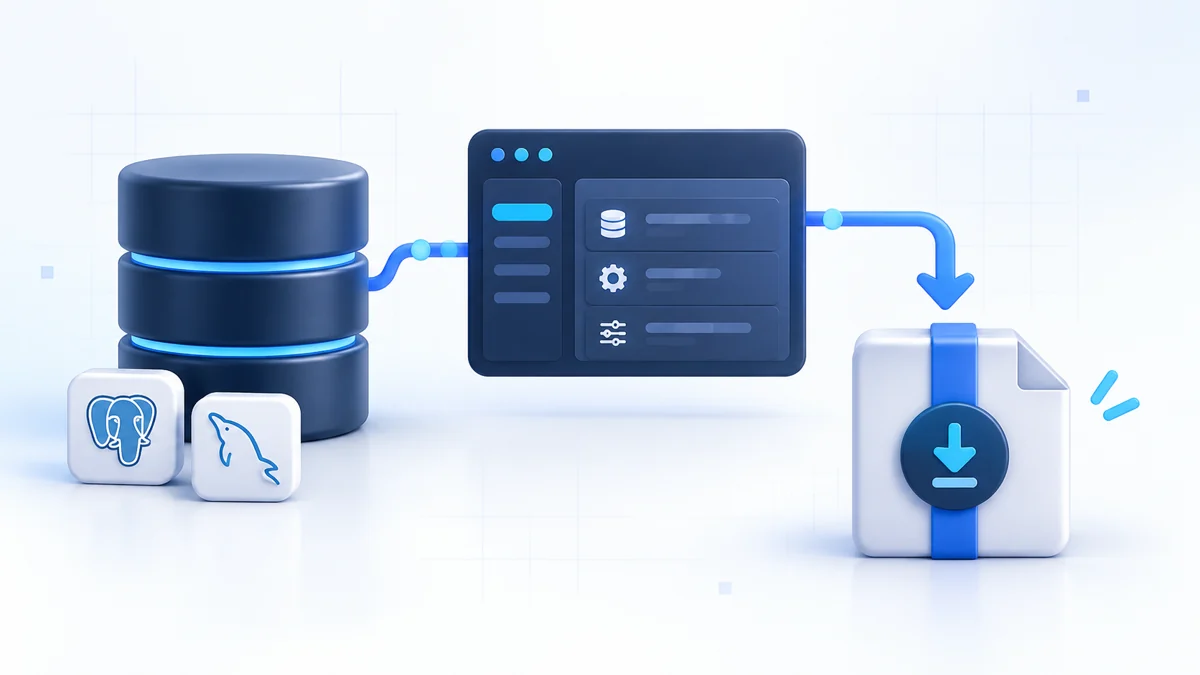
How to protect a new VPS before your website goes live
A practical security checklist for provider access, SSH, firewall rules, the Fluxo dashboard, application credentials, databases, TLS, backups, and monitoring.

Fluxo team
Product and operations

A fresh VPS is not secure merely because it has no application data yet. It already has a public address, privileged provider controls, an SSH service, and software that will need continuous patching. Once DNS points at it, automated scanners will discover exposed services quickly.
Fluxo establishes a useful baseline, but the server owner remains responsible for provider access, operating-system updates, application security, recovery, and deciding who should be trusted on the machine.
Use this guide as a launch sequence, not as a one-time guarantee.
Start with the threat model
Before changing settings, identify what the server will hold and who can administer it:
- Is the application public or internal?
- Does it process customer data, payments, credentials, or regulated information?
- Which people and automation systems need dashboard or SSH access?
- What would happen if the VPS, provider account, GitHub token, or backup bucket were compromised?
- How quickly must the application recover from deletion or lockout?
Fluxo sites share the fluxo Linux identity. This keeps deployments and operations simple, but it is not a hard multi-tenant isolation boundary. Host only applications and operators that you trust on the same Fluxo server. Separate hostile customers or strongly isolated environments onto different machines or accounts.
1. Secure the cloud-provider account
The provider control plane can usually reset the server, replace SSH keys, attach disks, change network rules, and open a console. Protecting Linux while leaving that account weak misses the most privileged path.
Before launch:
- Enable phishing-resistant multi-factor authentication where available.
- Use individual administrator accounts rather than shared credentials.
- Store recovery codes offline or in a controlled password manager.
- Remove unused API tokens and restrict active tokens by role and scope.
- Turn on billing, login, and infrastructure-change alerts.
- Confirm provider-console access works before hardening SSH.
- Take a snapshot before major provisioning or migration work.
Use a separate production project or account when it meaningfully limits accidental access from development systems.
2. Choose a clean, supported host
Fluxo supports Ubuntu 22.04 or newer on amd64 and arm64, with systemd and APT. A clean Ubuntu LTS image is the most predictable starting point.
Do not install Fluxo over another hosting panel that already manages Nginx, PHP-FPM, databases, users, or UFW. Conflicting ownership creates both reliability and security problems.
Size the host with operating headroom. One gigabyte of RAM and 20 GB storage is the minimum for one small low-traffic site and one database engine when swap is configured. Use at least 2 GB for a more comfortable small production server and 4 GB or more for Node builds, Python dependency builds, Redis, multiple databases, or larger worker pools.
Running out of disk space can stop logs, database writes, deployments, and certificate renewal at once. Capacity planning is part of security because resource exhaustion is an availability failure.
3. Patch before installing applications
Start from the provider’s current image and apply supported Ubuntu security updates. Reboot if a kernel or critical library update requires it, then confirm SSH and console access again.
Continue patching after launch. Fluxo manages its own release lifecycle and selected runtime tooling, but it does not remove the need for operating-system updates or application dependency maintenance.
Track at least:
- Ubuntu security updates and reboot requirements
- Fluxo release notes
- PHP, Node.js, Python, database, and Redis support lifecycles
- Composer, npm, Python, and framework advisories
- WordPress core, plugin, and theme updates where applicable
Do not combine every layer into one unreviewed maintenance event. Preserve a recovery path and verify applications after each high-impact change.
4. Install Fluxo with deliberate options
The standard installer is:
curl -fsSL https://fluxo.fabiotech.dev/install.sh | sudo bash
It verifies the operating system, architecture, release artifact and signed provenance, existing service state, SQLite schema, effective SSH port, and UFW state before making changes.
On a new host with inactive UFW, the installer allows the detected SSH port, HTTP, HTTPS, and dashboard port 9595 before enabling the firewall. It preserves an existing UFW policy rather than silently broadening it.
Install only the optional components you need. Every runtime and network service increases patching and operational surface. For example, a PHP-only server does not need the Python toolchain, and a static site does not need both database engines and Redis.
The installer creates the dedicated fluxo system user, runs deployments and site commands without root, installs Fail2Ban, stores bootstrap credentials in a root-only file, and grants only exact validated PHP-FPM reload commands through sudoers rather than a wildcard.
5. Establish SSH key access before disabling passwords
Do not disable password login until a second key-authenticated session and provider-console recovery are confirmed.
Add an administrator key through Settings > SSH Keys or through a carefully controlled server bootstrap process. Use a modern key type, protect the private key, and avoid copying one private key between every administrator’s laptop.
Fluxo can apply guided SSH hardening. It validates the effective policy, key access, remote or local context, and recovery acknowledgement before installing its managed key-only OpenSSH configuration.
For a fresh installer run, hardening is explicit:
curl -fsSL https://fluxo.fabiotech.dev/install.sh | sudo bash -s -- \
  --harden-ssh
Keep the original SSH session open while testing a new one. If the new connection fails, use the existing session or provider console to correct the configuration rather than repeatedly restarting SSH blindly.
After hardening:
- Confirm the intended administrator key works.
- Confirm password authentication is rejected.
- Remove retired keys promptly.
- Keep at least one tested recovery route.
- Record the effective SSH port in operational documentation.
Fail2Ban reduces repeated login attempts but does not compensate for weak keys, leaked private keys, or unnecessary network exposure.
6. Use both provider and host firewalls
Many VPS providers offer a network firewall or security group outside the server. Use it as the first filter, then use UFW on the host for local enforcement.
An ordinary Fluxo server needs inbound access only to:
| Port | Purpose |
|---|---|
| Effective SSH port | Administration |
80/tcp |
HTTP and Let’s Encrypt validation |
443/tcp |
HTTPS applications and panel domain |
9595/tcp |
Direct Fluxo dashboard access |
Restrict SSH and port 9595 to trusted source networks at the provider firewall when possible. If Fluxo is creating a new UFW policy, --management-cidr=203.0.113.4/32 can restrict the new 9595 rule to one address range. Fluxo rejects that option for an already active policy rather than risking an unexpected rewrite.
Never remove the currently effective SSH rule until another access method is proven. Provider and UFW rules must agree; allowing a port in one layer does not override a block in the other.
Do not expose MySQL/MariaDB, PostgreSQL, or Redis publicly for applications running on the same server. Bind and access them locally. If remote database access is truly required, use a private network, VPN, SSH tunnel, or narrowly scoped firewall rules plus database-level TLS and authentication.
7. Protect the Fluxo dashboard
Fluxo initially listens on HTTPS port 9595 with a self-signed certificate. Direct IP access is useful as a recovery path, but a trusted panel domain provides a cleaner administrative endpoint.
After first login:
- Change the bootstrap password.
- Store the new credential in a password manager.
- Open Settings > General > Panel Domain.
- Connect a dedicated hostname such as
panel.example.com. - Issue a Let’s Encrypt certificate or install a compatible custom certificate.
- Verify the trusted hostname before restricting direct port 9595 access.
Use a panel hostname that is not casually shared as an application URL. A hidden hostname is not an authentication control, but it reduces accidental exposure and makes policies easier to reason about.
Fail2Ban covers repeated dashboard login failures reaching Fluxo through HTTP, HTTPS, or direct port 9595. Administrators behind shared NAT should retain provider-console access because repeated failures from the shared address can temporarily block everyone using it.
8. Configure DNS and TLS carefully
Create only the DNS records you intend to serve. Remove stale records, especially incorrect AAAA records that direct some clients to the wrong host.
For every application domain, choose its WWW behavior:
- Redirect from www for
www.example.comto redirect toexample.com - Redirect to www for the opposite canonical form
- No redirect when only the exact hostname should be served
A redirecting pair requires DNS and certificate coverage for both names because HTTPS negotiation happens before the redirect response.
Fluxo validates Nginx configuration before reloading and shows the exact hostname set required for Let’s Encrypt. Port 80 must be reachable during HTTP validation.
When Cloudflare proxies the application, use Full (strict) with a valid origin certificate. Flexible mode does not encrypt Cloudflare-to-origin traffic and can create redirect loops. A Cloudflare Origin CA certificate is valid between Cloudflare and the server, but browsers do not trust it when connecting directly to the origin.
9. Apply least privilege to source and databases
Give Fluxo’s GitHub integration only the repository access needed for deployment. Rotate the token after suspected exposure and remove it when the integration is no longer used.
Every application database should have a dedicated username and password with access only to the databases it needs. Fluxo prevents new sites from using its fluxo, root, or postgres control-plane identities as application credentials.
Keep databases bound locally, and quote complex passwords correctly in .env. When rotating a database password, coordinate the database change and application environment update to avoid an outage.
For phpMyAdmin, Fluxo uses a short-lived one-time access link rather than leaving a permanent public login route. Sign in with a dedicated application account; root login is disabled. Disable or remove phpMyAdmin when it is not needed.
10. Keep application secrets out of source control
Store production values in the site’s environment editor, not in Git. Review:
- Application key and production URL
- Database credentials
- Mail credentials
- Cloud storage keys
- Payment and third-party API secrets
- Queue, cache, and session configuration
- Error-reporting credentials
Set production debug modes off. Laravel’s APP_DEBUG, verbose framework error pages, source maps, and overly broad logging can reveal sensitive implementation details.
Do not paste .env, private keys, tokens, or unredacted logs into public support channels. Rotate any secret that may have been exposed; deleting the message is not sufficient once a credential has been copied or indexed.
11. Treat application dependencies as part of the perimeter
Fluxo secures and operates the server layer. It cannot make vulnerable application code safe.
Before launch:
- Run the ecosystem’s dependency audit and review results.
- Remove unused packages and plugins.
- Confirm production dependencies are pinned by lockfiles.
- Disable default accounts and sample applications.
- Validate file-upload type, size, storage, and execution rules.
- Apply application-level rate limits to sensitive routes.
- Configure secure cookies, trusted proxies, and canonical HTTPS URLs.
- Review administrator roles and remove unused access.
For WordPress, patch core, themes, and plugins and remove anything inactive that will not be maintained. For Laravel, review queue, scheduler, storage, and proxy configuration in addition to ordinary HTTP routes.
12. Create encrypted off-server backups
A backup stored only on the VPS cannot recover a deleted disk, compromised root account, or provider loss.
Connect a private S3 or R2 bucket using a destination-specific credential. Include persistent site files and attached databases. Enable artifact encryption when appropriate and store the password outside the server.
Run a manual backup before launch, download it, decrypt it if necessary, and restore it into a disposable environment. Fluxo cannot recover a forgotten artifact password, and a successful upload does not prove the application can be restored.
Keep backup storage in a separate failure domain with independent MFA and recovery access. Choose retention that preserves older daily, weekly, and monthly points so a delayed compromise does not contaminate the only available copy.
13. Add external monitoring and recovery access
Fluxo shows server metrics, service logs, deployment output, process state, and administrative activity while the server is reachable. It cannot alert you that its own host, network, DNS, or TLS path is unavailable.
Add:
- External HTTP checks for critical application routes
- Certificate-expiry monitoring
- Provider resource alerts
- Application error reporting
- A notification channel independent of the server
Retain provider-console access and document how to reach the server if DNS or the panel domain fails. Test recovery credentials before an incident.
14. Complete the launch verification
Before opening production traffic, confirm:
- Provider MFA, alerts, and console recovery work.
- Ubuntu and installed packages are current.
- SSH keys work and password policy matches your decision.
- UFW and provider firewall rules expose only intended services.
- The Fluxo bootstrap password has been changed.
- The panel domain has trusted TLS or direct access is intentionally restricted.
- Application DNS and WWW behavior are correct.
- Certificates cover every served and redirecting hostname.
- Database and Redis ports are not public.
- Each application uses dedicated database credentials.
- Production debug output is disabled.
- Queue workers and scheduled jobs run under the intended configuration.
- Off-server backup and restore have been tested.
- External monitoring can detect a failure.
Keep the baseline alive
Security drifts as applications, people, and dependencies change. Set a recurring operating cadence to review access keys, firewall rules, active services, backup results, disk capacity, operating-system updates, Fluxo releases, and application dependencies.
Remove old access rather than merely adding new access. Investigate unexpected activity. Rehearse recovery. A secure launch is useful; a maintained and recoverable server is the real objective.